

This tutorial offers five solutions that are 100% effective for fixing the error where the system´s UI stops working that some Android devices have.
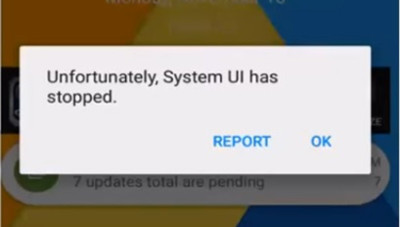
Have you ever been surprised by a message on your Android´s screen that warns you that the system UI has stopped working?
This is caused by an error on the operating system, or by a conflict that occurred with an update.
Don´t worry, this is nothing too serious, and does not have anything to do with the way that you use or operate your cell phone.
In other words, it´s not your fault if the system´s UI application stops working.
Of course, this is true if you are not an advanced user, like those that cannot pass the opportunity to enter the operating system´s settings to curstomize some options.
If you are an advanced user, then there is a high likelyhood that the modifications that you made may be causing this error.
And, even though this error is not too hard to fix, we already know how annoying this constantly appearing on-screen message is.
This is why we prepared this tutorial. That is, so that you can fix this error yourself, without needing to go to a cell phone expert.
1) What is the system´s UI?
The system´s UI is an interface that allows the user to operate the device, even if they don´t have any programming knowledge.
In other words, the UI is what makes the experience of using your device intuitive and user-friendly, without having to read the programming language that operates below the graphic layer.
This way, with just clicking an object or a picture, you could tell the device to execute an action.
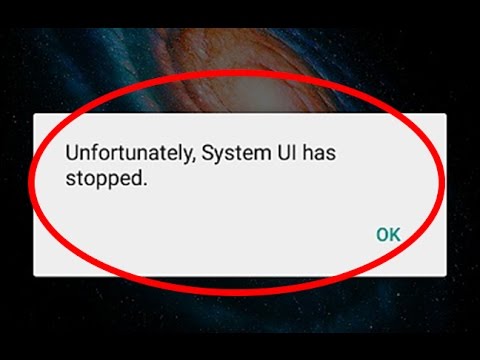
Unfortunately system ui has stopped
2 What caused my system´s UI to stop working?
The system´s UI generally stops working due to errors that occur while updating the operating system.
It also stops working after installing or uninstalling some apps, or after updating Google´s app.
The warning message about this error could vary depending on your mobile phone´s model and the Android version installed on it, as it can be observed in some examples.
To fix it, you need to know the cause of the error, which is not too easy for most users.
The reason for this is that the system and applications´ updates are generally installed in an automatic way.
But, if you are an user with advanced technical knowledge, and if you have done any modification on your device, then it will be easy for you to understand that said modification may be the causing your system´s UI to stop working.
Some of the modifications that could cause the error are:
- Root accesses to the system.
- Installing a custom ROM.
Now that we know the possible causes that make your operating system´s UI to stop working, let´s see the options available to fix it.
3 How to fix your system´s UI when it has stopped working
To fix your operating system´s UI when it has stopped working, it is necessary to try many options if you are not sure about what´s causing the problem.
Among the available options are:
• Deactivating, updating, or reinstalling Google´s app.
• Uninstalling the last app installed that could be causing a problem.
• Configure the option to allow overlays on Android versions newer than 6.0.
• Retore the device´s factory settings from the Settings menu.
Let´s see the step-by-step procedure of each of these methods to solve the error where the system´s UI has stopped working.
3.1) Google´s Application
As it was previously mentioned, an update or a compatibility issue with Google´s application could cause the system´s UI to stop working.
To solve it, try deactivating Google´s updates, which you can do by doing this:
• Step 1: Enter the settings manu of the mobile phone.
• Step 2: Select “Application manager.”
• Step 3: Choose Google´s app.
• Step 4: Deactivate the updates.
In case that this doesn´t work, you will need to do an additional step: click on “delete Google´s search history” and/or “delete all data”.
• Step 5: Click on “Storage.”
• Step 6: Select “Manage space.”
• Step 7: Choose the option “delete Google´s search history” and/or “delete all data”.
On the first case, you will delete all of the search history of the web browser, as well as the feed (the information preview cards,) and Google Now Launcher from your device.
On the second case, besides your search history, you will also end up deleting the feed´s configuration.
3.2) Last installed app
If the system´s UI stops working after you installed a new app, maybe that app is causing the error.
Therefore, the solution is to uninstall the app. And, if you really need that app, you will have to reinstall it.
But, if the error persists, maybe you will have to find a similar app that would give you the same functionalities, and that would also be more stable and not generate compatibility issues to the system.
3.3) Configuring the overlay settings on the system´s UI
It is possible that the system´s UI stops working because your Android device´s version may not have enabled the “overlay” functionality.
In this case, you will only have to enable it by setting up the following configuration:
• Step 1: Enter the settings menu of your mobile phone.
• Step 2: Then, select “Application manager,” and, on the upper right corner of the screen, where three vertically-aligned dots appear, select the option to view the system´s apps.
• Step 3: Look for the option “system´s UI.”
• Step 4: Enable application overlay.
Take your time to verify that the error message “the system´s UI has stopped working” stops appearing.
If this action does not fix the error, it is possible that you may have to do some additional steps to force the system´s UI to stop, which can be done by doing this:
• Step 5: Enter the “System´s UI” menu.
• Step 6: Click on “Force it to stop.”
Lastly, you´ll only need to restart your device so that the system applies the changes and stabilizes.
If you made a modification to the operating system by mistake while on root mode, that is, if you made changes with super-user privileges, the UI could stop working.
Also, if you installed a ROM (Read Only Memory,) or a read-only program, and then attached it to the operating system, it is possible that this could have caused the system´s UI to stop working.
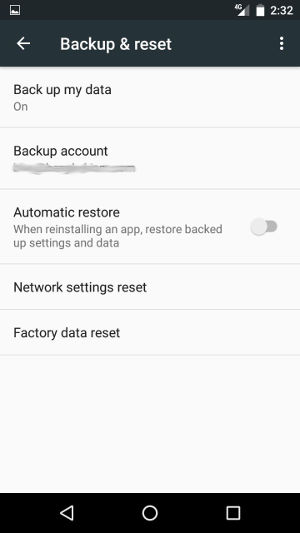
To solve it, the best option is to restore the device to its factory settings, which is also known as Factory Reset.
Before trying this option, and if possible, make a backup of all of your information, since the device will end up like new after using this method.
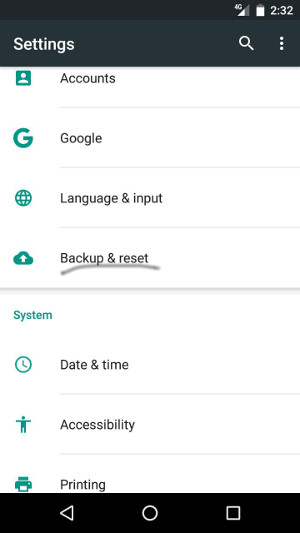
To restore the factory settings of your Android device, go to the Settings menu, and follow these steps:
• Step 1: On the main screen, enter on the “Applications” options on your mobile phone.
• Step 2: Enter on the “Settings” section (which is marked with a cog icon.)
• Step 3: Look for the option “settings,” and then for “back up and default settings.”
• Step 4: Click on “Restore factory settings.”
• Step 5: Then, select the option “restore phone to default settings.”
• Step 6: Lastly, accept and choose the option “Delete everything.”
This way, your mobile phone will begin to be formatted so that it ends up like new, that is, with its original factory configuration.
4) Android´s Advanced Recovery Mode
The Recovery option that comes with Android is generally used by Android users with advance knowledge.
This recovery method allows you to delete the cache memory from the system and applications.
This way, the error that makes the system´s UI to stop working should get fixed.
To make this operation, you should follow these steps while your phone is turned off:
• Step 1: Press the buttons to turn on the phone and to increase the volume at the same time until a black background screen appears. This is the recovery mode.
• Step 2: Use the button to decrease volume to move on this screen.
• Step 3: Slide downwards on this screen until you find the option “WIPE DATA/FACTORY RESET.”
• Step 4: Select this option by using the button that turns on the phone.
• Step 5: Choose “YES-DELETE ALL USER DATA” by using the volume buttons.
• Step 6: Click on “REBOOT SYSTEM NOW” by using the power button.
Afterwards, you´ll only need to wait until the process finishes so that your device ends up like brand new.
5) Conclusions
When an error message indicating that your system´s UI has stopped working appears in an Android device, you need to know what causes the error.
This message appears because the graphic interface in which the user communicates with the device is having a compatibility issue with the operating system.
This error generally occurs while installing programs or updating the operating system.
It also occurs in cases when the user enter the system with super-user privileges, and makes a modification on the root code.
In this tutorial, we learned to apply 100% effective solutions to the main causes that make the system´s UI to stop working.
Said solutions include deactivating Google´s updates, and deleting the data from this application.
Additionally, we learned that the recently installed applications could be generating the error on the system´s UI should be reinstalled or replaced for other more stable apps.
Likewise, in this tutorial, we saw how to configure the overlay option on the system´s UI, and how to force this application to stop when the other solutions do not work.
Also, we saw step-by-step how to restore your mobile device to its factory settings from the Settings menu.
Lastly, we learned an advanced solution involving using Android´s Recovery Mode, which leaves the device like brand new.
So, you already have all the necessary information to fix the error that makes the system´s UI to stop working by using five different solutions that are 100% effective.
We encourage you to share this tutorial, so that many more people know what to do when they see that warning message on their screen indicating that their system´s UI has stopped working.

